Hola! We understand that the published character template is pretty much unuseful without a tutorial. So, here I’m publishing a screencast recorded from my workshop at LGM.
Here’s a little video I have prepared on how we do coloring using colorcharts in Synfig.
The colorcharts is very cool feature for animation projects – you have all key colors defined in one file and when you change this file, all colors are changed in the whole project. So you can dynamically tweak colors for your characters with a single click.
Colorcharts are natively supported in Synfig through the linking feature. Many people know that you can link parameters in Synfig within one file, but very few know that you can link to parameters from other files. And this is how colorcharts work – we just link all colors to the exported values in another file. See video below for detailed explanation.
Finally I’ve got the video with my talk about Remake at LGM! Unfortunately the screen wasn’t recorded, so initially there was only my talking head there. But I’ve tried to reproduce everything what was happening at the screen during the presentation and combined with video. So I hope in this shape it makes sense now.
My English is pretty crappy, so here’s the presentation with all supporting text: lgm-remake-slides.pdf
We was so excited by our stickman merge tool, that we decided to integrate this feature directly into Synfig Studio. As result, we have made some trivial plugin system that allows to run python scripts for current document right from Synfig menu. Very simple, but hey! – it’s effective.
Here’s some explanation video:
People often write some scripts to make useful things on Synfig (sif) files. The most of these scripts are written in python. But for ordinary users running custom scripts from terminal is tricky. With plugins feature users can install scripts as easy as they copy files and transparently run them in the same way as they use standard Synfig Studio commands. Also, runing scripts from menu is much faster, than from terminal and it greatly improves the workflow for advanced users. Having this feature allows to easily add simple functions to Synfig Studio by writting scripts in python. Also, maybe the popular scripts could be used by developers as prototypes for functions to be implemented natively.
Synfig Studio builds with plugins support can be found our software page. For more information and source code please refer to this pull request page.
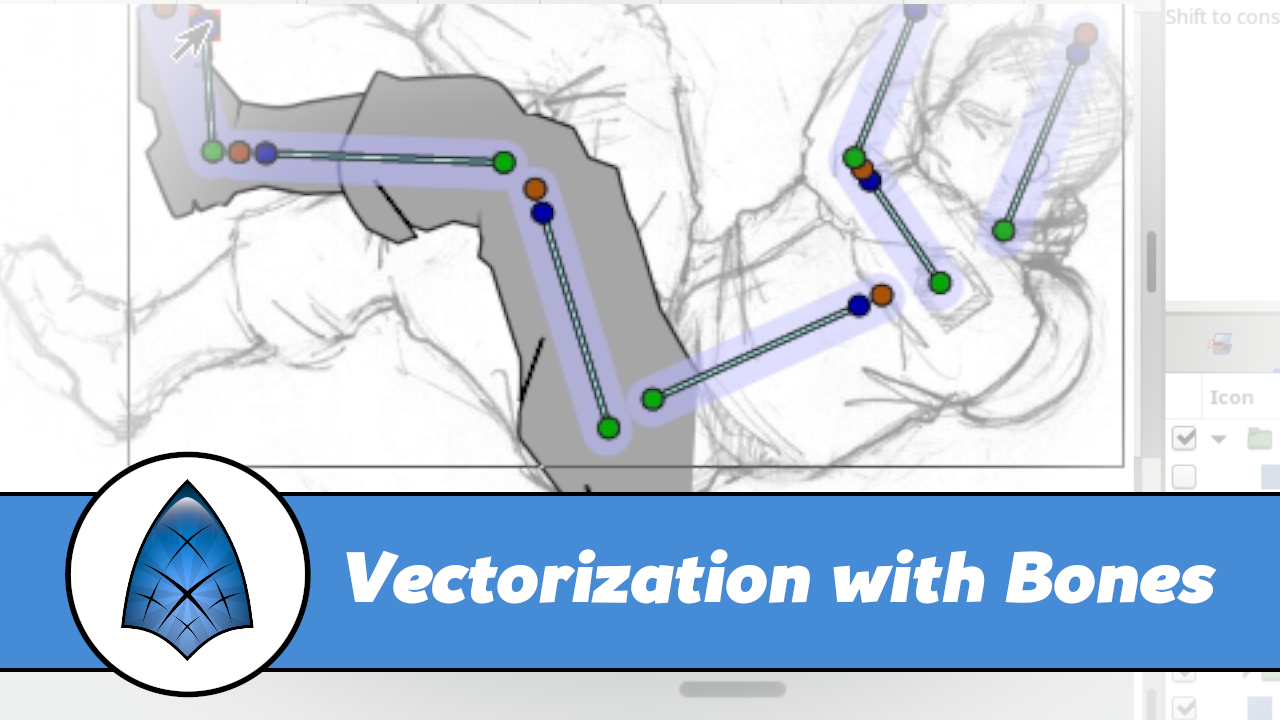
For a long time people asked for the tutorial explaining how to use Stickman Template and finally I have come up with something that might be called a tutorial. In fact those videos were recorded in different time (you might notice the differences in interface elements), but watching everything in sequence should give you the whole picture. Big thanks to Anna Orlova for translation and subtitling.
Synfig has no feature to manipulate camera view. Me and Genete arranged a workaround to have a camera fake using logarithm convert type and the zoom layer.
It’s time to tell about the way we organizing usage of the same models in various scenes with blender.
Imagine we have a model of… mmm… bike! And as you could see from storyboard bike is appearing on many scenes of Morevna Project demo. We do not want to include the full copy of a bike because every time we will change the original model, we will need to re-insert it into each scene and (sic!) animate it again.
Consider, what it is unavoidable to make changes in the model after it already inserted in the scenes and process of animation already begun. We can’t design the model from start till the very end – there is always something to fix during the usage. Also it could be handy to insert unfinished yet model to the scene to see how it will look, and let one artist to work on the scene and other continue develop model (like we did for truck model in scene 54).